Active Directory
Preparation
The following placeholders are used in this guide:
ad.companyis the name of the Active Directory domain.authentik.companyis the FQDN of the authentik installation.
Active Directory configuration
To support the integration of Active Directory with authentik, you need to create a service account in Active Directory.
-
Open Active Directory Users and Computers on a domain controller or computer with Active Directory Remote Server Administration Tools installed.
-
Navigate to an Organizational Unit, right-click it, and select New > User.
-
Create a service account, matching your naming scheme, for example:

-
Set the password for the service account. Ensure that the Reset user password and force password change at next logon option is not checked.
Either one of the following commands can be used to generate the password:
pwgen 64 1openssl rand 36 | base64 -w 0 -
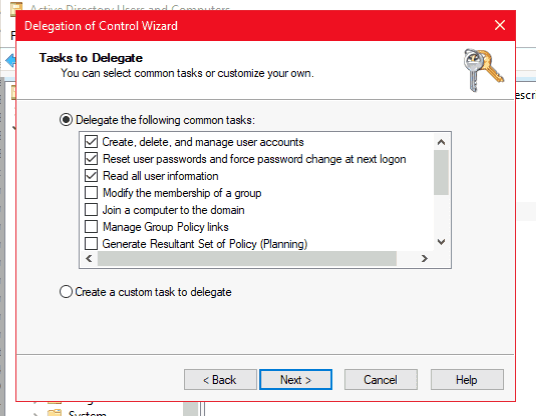
Open the Delegation of Control Wizard by right-clicking the domain Active Directory Users and Computers, and selecting All Tasks.
-
Select the authentik service account that you've just created.
-
Grant these additional permissions. They are required only when User password writeback is enabled on the LDAP source in authentik, and depend on your Active Directory domain.
Optionally, if you don't want authentik to be able to view and sync objects within certain Organizational Units, you can limit the service account's permissions:
- Right-click the Organizational Unit in question and navigate to Properties > Security.
- Select the authentik service account that you created.
- Under the Deny column, check Read.
- Click Apply.
You can repeat this process for other OUs and objects within Active Directory.
By default, Windows Server 2025 requires LDAP signing, which can disrupt authentik's Active Directory connectivity if LDAPS is not in use. You can address this by enabling LDAPS or by disabling LDAP signing on the domain controller. Disabling LDAP signing has security implications.
authentik setup
To support the integration of authentik with Active Directory, create a new LDAP source in authentik.
-
Log in to authentik as an administrator and open the authentik Admin interface.
-
Navigate to Directory > Federation and Social login.
-
Click Create and select LDAP Source as the type.
-
Provide a name, slug, and the following required configurations:
Under Connection settings:
- Server URI:
ldap://ad.company
infoFor authentik to be able to write passwords back to Active Directory, make sure to use
ldaps://as a prefix. You can verify that LDAPS is working by opening theldp.exetool on a domain controller and attempting a connection to the server via port 636. If a connection can be established, LDAPS is functioning as expected. More information can be found in the Microsoft LDAPS documentation.Multiple servers can be specified by separating URIs with a comma (for example,
ldap://dc1.ad.company,ldap://dc2.ad.company). If a DNS entry with multiple records is used, authentik selects a random entry when first connecting.- Bind CN:
<service account>@ad.company - Bind Password: the password of the service account created in the previous section.
- Base DN: the base DN that you want authentik to sync.
Under LDAP attribute mapping:
- User Property Mappings: select all mappings that start with
authentik default LDAPandauthentik default Active Directory. - Group Property Mappings: select
authentik default LDAP Mapping: Name.
Under Additional settings, adjust these optional configurations based on the setup of your domain:
- Group: if enabled, all synchronized groups will be given this group as a parent.
- Addition User/Group DN: additional DN that is prepended to the base DN configured above to limit the scope of user and group synchronization.
- User object filter: objects that should be considered users (for example,
(objectClass=user)). For Active Directory, set it to(&(objectClass=user)(!(objectClass=computer)))to exclude computer accounts. - Group object filter: objects that should be considered groups (for example,
(objectClass=group)). - Lookup using a user attribute: acquire group membership from a user object attribute (
memberOf) instead of a group attribute (member). This works with directories and nested group memberships (Active Directory, Red Hat IDM/FreeIPA), usingmemberOf:1.2.840.113556.1.4.1941:as the group membership field. - Group membership field: the user object attribute or group object attribute that determines the group membership of a user (for example,
member). If Lookup using a user attribute is set, this should be a user object attribute. Otherwise, this should be a group object attribute. - User membership attribute: ensure that this is set to
distinguishedName. - Object uniqueness field: a user attribute that contains a unique identifier (for example,
objectSid).
- Server URI:
-
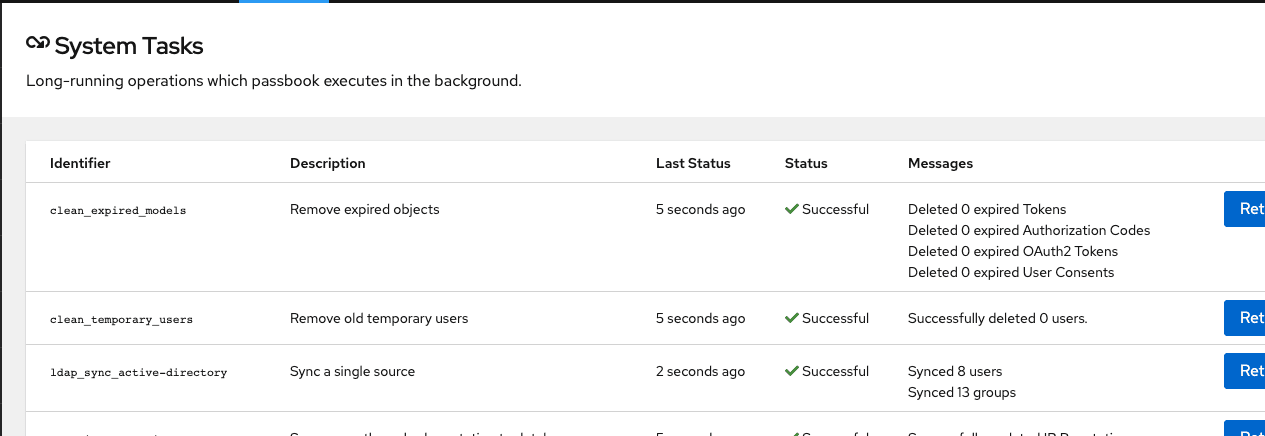
Click Finish to save the LDAP source. An LDAP synchronization begins in the background. After it is complete, view the summary by navigating to Dashboards > System Tasks:
-
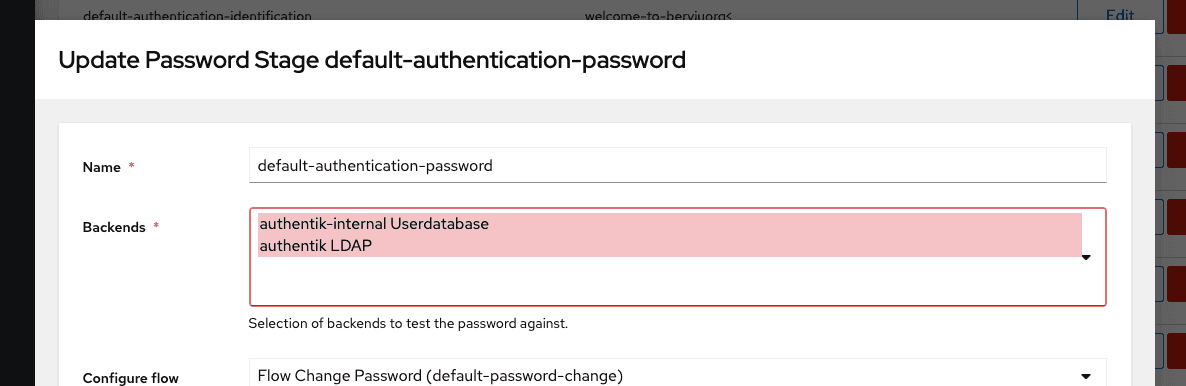
To finalize the Active Directory setup, enable the
authentik LDAPbackend in the password stage.